

How to Start and Update Your HWGrow Journal

Your HWGrow journal gives your updates, photos and videos a home you can return to, share, and discuss with the community. You do not need to build a website or format a blog post. Log in, choose Journals, select the journal, then use the green “Post an update to this journal” control near the top.
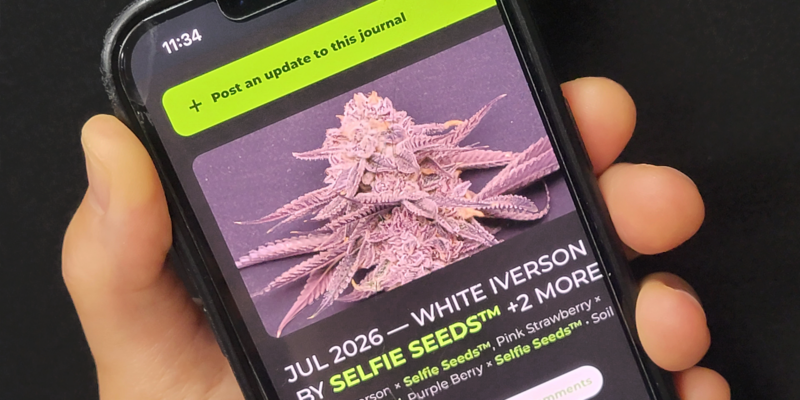
This walkthrough uses HWGrow’s existing July 2026 journal as an example. Its header brings together a featured image, the journal’s title, its author and the start date. Your journal will use the details you enter.

Check your journal access
Cup of Coffee / Supporter membership includes one active journal. Eligible Grow With Me, Breeding and Hydro Masterclass members receive the Supporter benefit and can keep two active journals.
Verified Selfie Seeds™ purchase journal credits are available. An eligible purchase credit adds one extra active journal slot per purchaser email, including without a paid HWGrow tier. Use the same email address as the eligible purchase. The extra slot stacks with paid-tier slots; multiple purchases under that email do not add more slots or increase the daily point limit.
For new Selfie Seeds™ purchases: After your order arrives, please allow at least 3 days for journal access to unlock. Credits are refreshed weekly after orders are marked Complete, so some orders may take longer.
Your account displays your own active-journal allowance.
1. Open your journal dashboard
Sign in to HWGrow, open My Account, and select Grow Journals. You can also open your journal dashboard directly.
If you arrive through the public Grow Journals directory, select Start a Journal. This takes you to the same account page.
2. Create your journal
Find Start a new grow journal. Enter the required details for your journal: grow medium, start date, breeder name and strain. You can add another breeder/strain entry when needed. The form also offers optional date, equipment and featured-image fields.
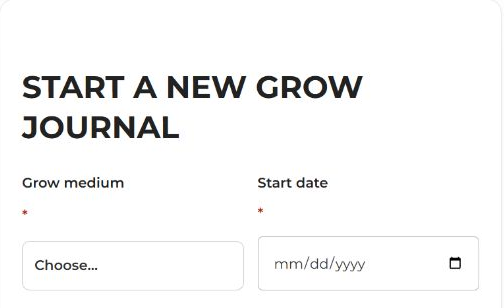
Choose Create my journal when the details are ready. The example journal’s title combines its start month with its recorded names; your journal title will reflect your own details. A featured image helps identify the journal in the directory.
Journals are public and searchable. Keep private account details out of the text and photos you publish.
3. Post an update
Log in, choose Journals, select the journal, then use the green “Post an update to this journal” control near the top. Give the update a useful title and add your notes in Journal update. Use Photos / video → Choose Files to attach media, then select Publish update.
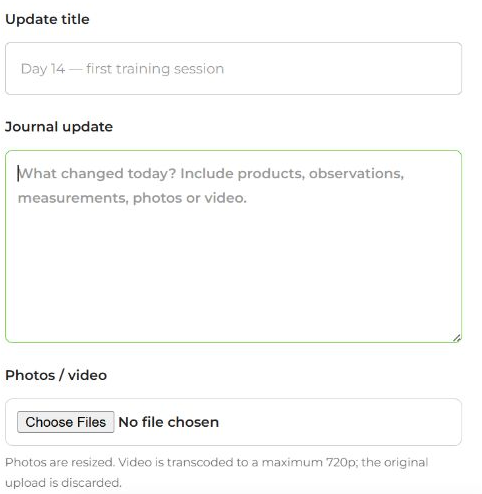
The existing example shows how one journal holds a continuing timeline instead of creating a separate journal for every update. Use your current journal whenever the update belongs to that same record.
Earn one journal point a day
Current paid-tier members and members with a verified Selfie Seeds™ purchase journal credit can earn one HWGrow reward point per day by publishing a journal update with at least one of these:
- At least 10 visible text characters;
- A successfully uploaded photo; or
- A successfully uploaded and processed video.
The maximum is one point per member per day across all their journals. A second journal, another same-day update, an additional journal slot or another Selfie Seeds™ order does not increase that daily limit.
Videos are automatically resized to a maximum of 720p with their proportions preserved, and smaller videos are not upscaled. Once the resized copy is validated, the original server upload is deleted immediately. Upload limits apply before conversion: the currently verified upload/request ceiling is 270 MB, shared by multiple files and form data. Photos have a 25 MB limit. Shorten or compress a file that is too large.
The update title does not count toward the text minimum. Creating a journal or uploading its featured image alone is not a qualifying update. A draft or failed upload does not earn the daily point on its own, although a published update can still qualify through another valid part of the same update. Editing an older update does not create a new day’s point.
Days reset at midnight in HWGrow’s site timezone, currently UTC. A journal slot lets you keep an active journal; a reward point is a separate benefit earned by a qualifying update. The minimum transfer of available, finalized rewards to Selfie Seeds™ is $5, and the account email must match. Read HWGrow Rewards for the current reward-program rules and ways to use eligible rewards.
Sign in to HWGrow with the same email address as your eligible Selfie Seeds™ purchase. If you do not have an HWGrow account yet, create one using that email; your verified purchase credit does not require a paid HWGrow tier.
Finish a journal. Earn a completion reward.
$20 in Selfie Seeds™ store credit per qualifying completed journal. Every fifth earns $50 instead of $20. A qualifying journal must be public, marked completed/closed, and contain your published updates on at least 20 different dates. Multiple updates on the same date count as one day; the days do not have to be consecutive.
You also earn +20 karma once for a qualifying completion. This is separate from daily journal points and the shared monthly rewards pool.
Eligible past journals count too. Completion credit is processed automatically for the account using your HWGrow login email; each journal can earn once. Administrators are excluded, and eligibility and anti-abuse checks apply. A confirmation email is sent after the credit transfer is confirmed—not merely when you close the journal.
Before closing: check your entries and photos. Closing archives the journal and locks owner editing. Credit is promotional store credit, has no cash value and is not redeemable for cash, except where required by law. It is not a promise of free products or a particular outcome.
4. Find your journal again
Return to My Account → Grow Journals and choose View journal. You can also find published journals in the community directory, which shows the most recently updated journals first.
On your journal page, Timeline, Photos, Grow Details and Discussion keep the different parts of your record together. Use your journal’s link when you want to share the whole record.
If you cannot start a journal
Check that you are signed in to the correct HWGrow account. For the Selfie Seeds™ benefit, the email must match the eligible purchase. Your dashboard also shows whether you have an available active-journal slot. For a new purchase, allow for the weekly Complete-order refresh described above. If the expected credit is still missing afterward, contact HWGrow so the account entitlement can be checked.
Closing and archiving a journal permanently locks owner updates and edits in the current interface. To continue your record, log in, choose Journals, select the journal, then use the green “Post an update to this journal” control near the top. Closing a journal is a separate action.
Ready to begin? Open My Account → Grow Journals.
You may also like
Everything HWGrow Uses









Featured Grow

How do I purchase your step by step seed to veg mean and feeding chart

fair point was going to res change tonight anyways think flip will happen this weekend anyways :)
I would flip now They’re still gonna grow for 3 weeks. There’s a point where they’ll get too big and…
no i didn’t yet waiting for the left plant to fill up more space in the tent and wanted to…
I miss angle draining and dunking. Good job responsive feeding.